Showing posts with label ipod. Show all posts

Wednesday, October 20, 2010

Using MP3 Players in the Classroom


I received a box in the mail today containing 15 Coby 1GB MP3 players.

They're no iPod, but you know what? I'm okay with that. And in some cases, they may actually be better than an iPod – at least for the purpose I'm looking for them to serve. They only cost $23; far cheaper than, say, an 8GB iPod Touch. Cheap means disposable, which is a good quality to have when being handled daily by middle schoolers. Also, cheap means fewer features. While limiting in potential, it makes using the players more manageable. For example, I purposely ordered an mp3 player without a radio feature. Now when I load material and hand it over to a student, I know that is the only thing he/she will be listening to.

I had an idea exactly 362 days ago – just short of a full year. It has mutated and expanded a bit since then, but now that I have the tools, I'm ready to make my idea a reality.

Here are 3 ways I plan to use my new MP3 players in the classroom:


Audio Books – Not only is there a wealth of free audio books available through sites such as Project Gutenberg and Librivox, but students can also record books as part of a classroom audio library. If students choose to record a title that is within the public domain, it can be hosted online and shared with the world – talk about authentic audience! I currently have two students who spend their lunch period each day recording an audio book version of the famous Jack London book, Call of the Wild.

Lecture/Guided Notes – One problem that I have found with running learning centers in my middle school classroom is that the teacher turns into a living pinball, constantly bouncing between raised hands. I have yet to try it, but I plan on using the mp3 players as a station in my class. I can record a listening passage, or even a selection from whatever novel we may be studying. Included with this recording can be comprehension questions, clarifications, etc. – in short, what I would have to explain and re-explain to that station throughout the day. Students would be able to replay things they may have missed, and it will allow me to focus on other stations in the room that may need closer attention. It's about as close to cloning myself as I will ever get!

Review – Our team has a problem this year with chatty study halls. It's not all of the kids, but a few disruptive ones are all it takes to light the fuse. I mentioned the mp3 players to my Social Studies teacher, and she volunteered to record review questions and answers for her upcoming unit test. We're going to load them onto the mp3 players and hand them out to select kids during study hall. The result should be twofold – they'll be quiet, and may actually learn something in the process!

What am I missing? How else can I get the most bang for the 23 bucks spent on each of these little gadgets?

Save to delicious Saved by 0 users
Digg Technorati StumbleUpon Reddit BlinkList Furl Mixx Facebook Google Bookmark Yahoo
ma.gnolia squidoo newsvine live netscape tailrank mister-wong blogmarks slashdot spurl

Thursday, March 18, 2010

Top 10 Teacher Apps for the iPod Touch

Searching for iPod Touch apps for teachers in Google results in close to a million hits, so what’s the harm in adding one more? Here is my list (some scholarly, some not so much) of apps that I couldn't do without.

1. Dropbox – This handy app compliments the dropbox.com file storage website. The service is an excellent alternative to uploading and sending files to your own email. The Dropbox app also allows for offline use, which is where it comes in most handy. It also has a built-in media player. If I’m in a hurry and need a media file but don’t want to wait interminably for iTunes to load, and then have to go through the laborious task of finding my iPod usb connector, this is an effortless alternative.

2. NoteBrainer – This is a must have app for any music student struggling to learn how to read both treble and bass clef. The app displays or (optionally) sounds the note, and then asks you to correctly identify it. It’s simple, but addictive (and much more interesting than rote memorization!). I've been learning how to play piano since August, and this app is great practice.

3. Pandora – Pandora is an Internet radio station that plays songs based on your previous song preferences. This is a must have for any English Language Arts teacher who is teaching a book/unit that takes place in a specific era. For example, if I was teaching S.E. Hinton’s That was then, This is now and I wanted to give my students a taste of music from the time period, all I would have to do is create a Pandora station based on the search term “60s rock.”
4. Stanza – This free e-book reader is not only intuitive, but effortless to use. The app contains a searchable database using e-book sites like Project Gutenberg, and downloads automatically so that they can be read offline. The latest version also features capabilities to highlight and annotate.

5. Instapaper – This app takes any website and converts it to “digital paper” that can be stored on the iPod and then read offline. This is particularly useful to me because many of the news sites that I enjoy reading are blocked by my school’s filter. With a little bit of foresight, I can convert the page at home, and then read at my own leisure during my lunch break!


6. Free RSS – This app is exactly what it sounds like. Again, similar to instapaper, I appreciate that this app stores posts from a blog’s RSS feed so I can read them when I am not connected to a wifi signal.

7. Office2 Plus – I wrote about using Zoho on the iPod Touch as a portable word processor, but this is only possible when within range of an Internet signal. Office2 Plus is a suitable alternative. Files are saved in .doc format and can be emailed to a desktop computer for further editing and printing.

8. Paper Toss – Fine, maybe this isn’t very educational, but if I am making a list of my favorite apps, this has to be on it. Paper toss is a game that challenges you to do exactly that – toss balls of paper into a trashcan. It sounds lame, but it is dangerously addictive!


9. Wink – If you have an iPhone with a built-in camera, then this app is especially useful. Wink allows you to take pictures stored on your iPhone, or from Flickr, Facebook, or Shutterfly and organize them into a photo strip. Then, for $2.50, that strip can be printed and sent via snail mail. This could be a great way to creatively document field trips or in-class activities.


10. Wikipedia – Maybe it’s a bit of a cop-out to put this on an app list, but there’s no denying how important Wikipedia has become. In fact, a recent study has shown that more than 80% of college students turn to the source when beginning research. Of all the apps on this list, this one offers the greatest potential simply because of the extraordinary amount of information that it contains.

Save to delicious Saved by 0 users
Digg Technorati StumbleUpon Reddit BlinkList Furl Mixx Facebook Google Bookmark Yahoo
ma.gnolia squidoo newsvine live netscape tailrank mister-wong blogmarks slashdot spurl

Sunday, November 8, 2009

iPod Touch Home Screen OCD

iTHSOCD - The uncontrollable desire to control both the functionality and the aesthetic properties of the home screen on the iPod Touch.
I am simultaneously coining a new disorder and self-diagnosing myself with it. This brand new disorder is called iPod Touch Home Screen Obsessive Compulsive Disorder (iTHSOCD).

It has been driving me nuts that default apps on the iPod Touch can't be removed. I don't own stocks – I don't need an app staring at me from the home screen to remind me of that fact. There's also an app called Voice Memos for recording reminders and messages, and my iPod (3rd generation touch) doesn't even have a microphone! I don't need this junk!

It seems that that only options to remedy this are to either jailbreak the iPod and risk getting infected by the latest rash of viruses, or to simply drag all the unwanted items onto their own home screen. I decided to play it safe and go for the latter. The apps aren't gone, but they're effectively segregated.

On to my next problem.

Safari comes with the handy option of saving favorites directly onto the home screen. I personally like this because all my frequently visited sites can be grouped on their own home screen as a visually pleasing favorites list. The only problem is that not all of these sites provide visually pleasing home screen icons.


As best as I can tell, Safari uses the default .ico file (that's the little picture that appears in the address bar of a browser) as the home screen icon for sites that are configured for mobile browsers (Bank of America, for example). For all other sites, it just takes a screen shot and uses that. These screen shots are tiny, bland, and basically useless for anything other than making my iPod look kind of unkempt. Here's where the Home Screen OCD kicked in – I figured out a way to give every site an appealing home screen icon.

It's simple but it works. The screen shot Safari uses is literally a shot of whatever is on the screen at the time the “add to home screen” button is pressed. Before pressing the button, all I do is zoom in on either a logo or interesting design element, and viola! Instant home screen icon. This works especially well for blogs or other personal websites.

Home Screen OCD satisfied.

Here is my iPod favorites list, complete with visually pleasing icons.


And if you're interested, here are the links starting at the top left:

School Email – District employee email site
My Blog – You're lookin' at it!
Merit Badge – My band's Myspace page. Not really active these days, but I like to check up on it occasionally
Cool Cat Teacher – Excellent blog by educator, Vicki Davis
2 Cents Worth – Another great education blog
BobUffalo.com – Colleague's fledgling website promoting her children's book series
M&T Bank – Amazingly, this site did not supply its own icon
The Edublogger – Blog sponsored by edublogs.org
TeachPaperless – Great ideas from progressive-thinking Latin teacher, Shelly Blake-Plock
Mike Fisher – PB Works site for my tech integrator pal
Ed Insanity - Blog site of educator, Jonathan Becker
Save to delicious Saved by 0 users
Digg Technorati StumbleUpon Reddit BlinkList Furl Mixx Facebook Google Bookmark Yahoo
ma.gnolia squidoo newsvine live netscape tailrank mister-wong blogmarks slashdot spurl

Friday, November 6, 2009

Using the iPod Touch to Word Process

A glimpse of Zoho on the iPod Touch


Maybe it was too much birthday cake, but last night I had a bit of a stomach ache. I called it an early night and climbed into bed to play with my new iPod Touch.

Years ago I had experimented with students writing on a Pocket PC using Pocket Word. I was hoping to find an app for my ipod that was along the lines of a pocket version of OpenOffice but as far as I can tell, that doesn't exist. Instead I turned to Zoho.com - the leading rival to Google Docs. As far as I'm concerned, the two are equal. The only reason I favor Zoho is because up until recently Google Docs was blocked for us at school.

Toying around with my iPod last night eventually turned into a blog post about the dangers of poor administrative decisions. It was a decent post, but I was more proud of the fact it was written in such an unconventional manner.

I'm proud that this post is being written the same way. Here's my quick how-to for turning the iPod Touch into a portable word processor.

Go to mobile.zoho.com. Saving a shortcut to the home screen creates a very app-like icon. Unfortunately, Google gears hasn't quite found it's way to the iPod yet, so cloud sites only work with a wireless connection. Otherwise, it functions very much as a suitable word processing app.


Notice the Zoho icon at the lower left of my home screen.


Pros

  • The iPod Touch keypad allows for surprisingly speedy typing (especially when turned horizontally).
  • Because Zoho is a cloud app, work started on the iPod can later be completed or edited on a laptop or desktop computer.

Cons

  • Mobile Zoho is missing many of the bells and whistles that the full-scale app boasts. The one most sorely missed is probably spell check. As a Firefox user, I've grown used to a built in spell check when I type anything.
  • Mobile Zoho does not support direct export to other sites. This means after I'm finished typing this post, I'll have to copy and paste it into the Blogger editor before publishing.
  • Creating a new document is not a problem. Neither is adding text or saving it. There's one major glitch with using Zoho on the iPod Touch. For some reason, after the document is saved and closed, it is no longer able to be edited again on the iPod. It can still be opened and viewed, but clicking on the text field does not bring up the key lard and cursor. I sent a support request to the nice folks at Zoho - if I hear back, I'll update this post.
Save to delicious Saved by 0 users
Digg Technorati StumbleUpon Reddit BlinkList Furl Mixx Facebook Google Bookmark Yahoo
ma.gnolia squidoo newsvine live netscape tailrank mister-wong blogmarks slashdot spurl

Tuesday, November 3, 2009

What's Next for Digital Natives?

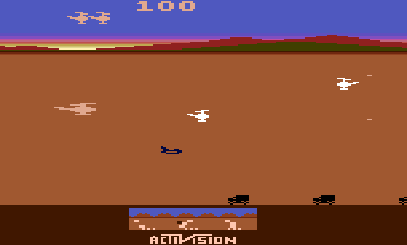
At only about 4 years of age, I can remember sitting in front of the bulky console television playing my parents' Atari game system. I knew how to change cartridges and turn the thing on. Some games, I even knew how to play (All I could get my triangular spaceship in Asteroids to do was spin recklessly in the center of the screen, but I was a champ at Chopper Command). I don't think my folks ever sat down with me and taught me how to play - I just knew.

Chopper Command - Still the coolest Atari game ever

Almost 25 years later, I am now experiencing this from the other side of the fence. My 2-year-old daughter Sophie smuggled my new iPod Touch from the counter last night. Curious to what she would do, I opened up Doodle Buddy, a free drawing app I had downloaded earlier in the evening. It's simple to use – draw with your fingers and shake to clear the screen. Within minutes, Sophie had is all figured out. I didn't really have to teach her – she just knew.


Although Marc Prensky first coined the term digital native in 2001, I associate it with the work (and recent webinar I attended) of author Don Tapscott. The term is used to broadly define the current youth generation:

A digital native is a person for whom digital technologies already existed when they were born, and hence has grown up with digital technology such as computers, the Internet, mobile phones and MP3s.

Sophie certainly fits the definition of a digital native, but I think it's fair to say she doesn't belong to the same population that Tapscott and Prensky were writing about. Sophie's generation has yet to be defined. What will it be – digital native 2.0? The Networked Generation? The Wifi Child?

Regardless of the name, this generation undoubtedly has a lot to look forward to.
Save to delicious Saved by 0 users
Digg Technorati StumbleUpon Reddit BlinkList Furl Mixx Facebook Google Bookmark Yahoo
ma.gnolia squidoo newsvine live netscape tailrank mister-wong blogmarks slashdot spurl

Thursday, March 19, 2009

iPods in the Classroom - Webinar Notes


Last night I attended my first webinar hosted by EdTechConnect. The webinar was titled I Didn't Know you Could do that with an iPod, hosted by Arizona educator, Tony Vincent. During the webinar I used a Word file to take notes, copy links, and capture a few screen shots. Here are my notes from the evening.


Audio/Music:
  • External microphone accessories can turn the iPod into a portable hand-held recorder. Possible uses – Podcasting, collaborative student projects.
  • One point Tony mentioned that I found to be interesting was that Apple mis-labels categories on the iPod. The “music” index can really be any audio file. For example, this could be a famous speech, radio broadcast, or historical interview. Transcripts can be added to the file in iTunes using the “lyrics” options. I also thought it might be neat to include response questions. Not only would the iPod hold the audio, but it would become something of a digital worksheet as well! Lyrics can be accessed on the iPod by pressing the center button four times.
  • Another great use for the iPod is for editing student writing using SpokenText.net. This site converts a Microsoft Word or PDF file into a spoken audio file. This can be loaded onto the iPod, and then the student can listen to their work. This will help them detect any issues with context, fluency, grammar, etc.

Photos:
  • The iPod's photo section can be manipulated for use beyond just sharing vacation pictures. For example, it can become a personal presentation tool by choosing the “save as jpg” option in PowerPoint. Each slide becomes its own image and can be uploaded to the iPod.
  • iPods can also be used for studying in the form of digital flashcards. While it may take a bit of knowledge using programs such as Photoshop, Gimp, or even Microsoft Paint, teachers can create a series of jpg images that, when viewed in the correct order, can be used as flashcards. Tony showed one example that was a review for identifying U.S. states and capitals. The first image was just an outline of the state. When he progressed to the next image, it was a copy of the first image but with the name of the state and its capital included. It may take some time to create and organize a set of flashcards like this, but once made, they can be distributed to an unlimited number of iPods. There are also resources online for downloading already made sets.

Notes:
  • An iPod is capable of reading up to 4000 characters saved in a simple .txt file. The text is unformatted but its small file size means that an iPod could literally hold 1000s of books (albeit not a practical substitute for an ebook reader such as the Kindle).
  • Sites like ipod-notes.com and ipreppress.com can help prepare writing for the iPod, but the most useful application of the notes function is in the creation of student-written “choose your own adventure” stories. Students write all the parts to the story and then use iWriter to link the pieces together and load them onto the iPod. iWriter creates hyperlinks at the end of each file that provides the path to the other parts of the story. The only downside is that iWriter has a cost attached, but I imagine anyone with some basic HTML knowledge can figure out a way to hyperlink the .txt files together.


This webinar was focused primarily on scroll-wheel iPods such as the classic, nano and mini. I can only imagine what else can be accomplished on touch screen iPods - and apparently it's enough to warrant another webinar. Tony will be presenting on Ustream as well as at NECC regarding using the iPod Touch in the classroom.


Here's the chat log of the 160+ attendees. If you're interested in learning more, check out Tony's website Learning in Hand, or follow him on Twitter @tonyvincent.
Save to delicious Saved by 0 users
Digg Technorati StumbleUpon Reddit BlinkList Furl Mixx Facebook Google Bookmark Yahoo
ma.gnolia squidoo newsvine live netscape tailrank mister-wong blogmarks slashdot spurl