Field trips are a great idea because it exposes kids to things many of them have never seen before. The probem, however, is that the excitement and novelty often trumps any chance for the true real-world learning and teachable moments that field trips offer. Sure, you can take pictures or videos, but these static media just don't compare.
I was thinking about this and I was reminded of a feature I used to like when my wife and I were house hunting. Some realty sites have an interactive feature where the potential buyer can take a virtual tour through the house. It was a great way to really understand the layout of the house and visualize what it would be like to live there.
Why not use this virtual realty technology for field trips? It's actually fairly simple to do. Imagine taking a field trip to a historic location, for example. The trip can be captured by digital camera and later transformed into a virtual trip that be re-explored in depth from the classroom.
Here is my tutorial for creating a virtual reality tour.
Software Needed:
Auto Stitch
Pano Cube
PT Stitcher
(I have included all of these applications in a .zip folder that can be downloaded
here. They can also be downloaded individually from their respective companys' sites.)
Image Editor – Photoshop/Gimp/etc
Equipment Needed:Digital Camera with plenty of memory
Tripod
Part I: Taking pictures
1. Position the tripod and camera in the approximate center of the location that you plan on capturing. Once you begin taking pictures you cannot move the tripod, so choose carefully.
2. You need to be able to move the head of the tripod in a vertical line from bottom to top but keep it level horizontally, so adjust your tripod as necessary. Do this before you begin taking pictures so it doesn’t interrupt the continuity of the shots.
3. Begin taking pictures by tilting the camera as far down on the tripod as it allows. It’s okay if the tripod legs are in the picture – that’ll be fixed later. Take one picture, then move the camera up so that the new picture will have about 60% overlap. In other words, before moving pick something on the camera screen that is about 40% up from the bottom, and then move the position so that target is now at the bottom of the screen.
4. Continue to take a picture and move the tripod position until your camera is facing straight up (or as close as your tripod will allow). One series of vertical pictures should consist of approximately 10-15 shots depending on the overlap for each picture.
5. Swivel the camera counter-clockwise so there’s about 60% horizontal overlap. Aim the camera all the way down to the ground again and begin a new series of pictures.
6. Repeat steps 3-5 until you have moved 360 degrees around your location. Your final series of pictures should overlap with the first series.
Part II: Create the Panorama
1. Run the AutoStitch program. Select Edit from the menu and then choose Options. You can leave everything as it is, but change the Output size height to 700.
2. Go to Open in the File menu. Select all of your pictures (there should be between 100-150 of them depending on how much they overlap).
3. When AutoStitch finishes, it will create a file called pano.jpg.
4. Use the image editor of your choice (Photoshop or its free equivalent,
GIMP) and open pano.jpg. In order to display correctly as a virtual reality tour, pano.jpg must be cropped to be
exactly twice as wide as it is high. First, crop out any black areas (these are usually on the outside edges where you may not have tilted the camera enough while taking your pictures) as well as any place where you see the tripod legs. If you’re comfortable with your image editor, these can also be removed using the clone tool.
Do not crop the width of the image. If you do so, your virtual reality tour will not be seamless.
5. Make note of the width of your image and then increase the canvas height to half the width. This will put a white space both above and below your image.
6. Using the marquee tool, select and copy a 50-100 pixel strip from your image and copy it. Then stretch it to fill the white space. Do this for above and below the image.
7. Save this edited file as a jpg.
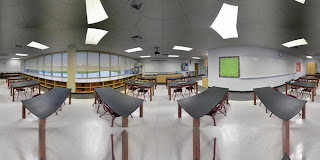
Your image should look something like this. Notice the top and bottom of the image are just slices that have been copied and pasted then stretched to fill the space.
Part III: Turning your panorama into virtual reality1. Begin by moving the PanoCube folder (named PC00292) directly to your C drive (click on my computer and then C drive). This program is pretty finicky and won’t work if it is in a different location.
2. Open the folder and locate both the PanoCUBE.exe file and the PTStitcher.exe file. Drag the PTStitcher.exe file into the PanoCUBE.exe file. This only has to be done the first time you use the program.
3. Now locate the image file you created with the image editor. Drag this file into the PanoCUBE.exe file. PanoCube will work for a while and then create a .mov file with the same name as the image you dragged into it.
4. You’re done! You can either embed the .mov into a website, or play it from the computer by double clicking it.
Here is a sample tour I created of one of the science labs at my school. (If it doesn't display correcly on your computer as an embedded object, you can download the .mov
here).


